
Camp Buddy on Mac: Manage Routes, Saves, and Story
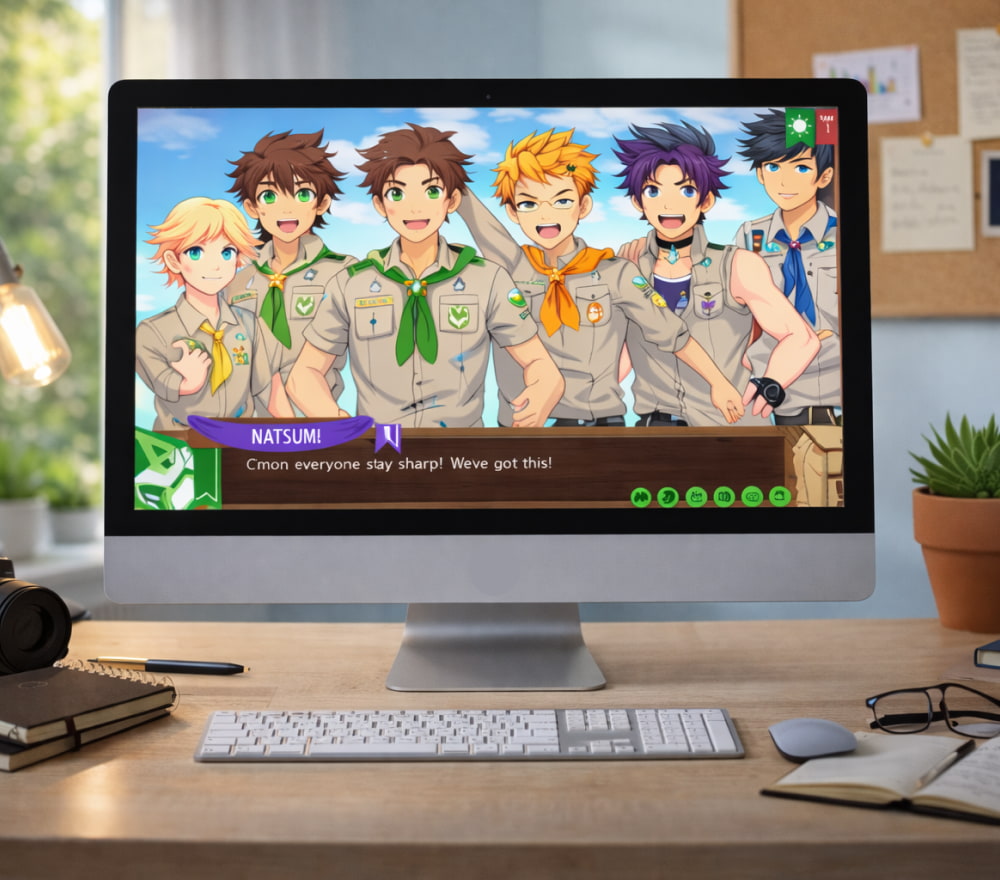
Download Camp Buddy Game for Windows PC
Play GameIf you use macOS and want a reliable way to enjoy Camp Buddy, the key is choosing a setup that matches your Mac’s hardware, your comfort with tweaks, and how “native” you want the experience to feel. Some players prefer a lightweight approach, while others want the most stable performance even if it takes a bit more work up front.
Below you’ll find clear, non-sketchy ways to get started, plus troubleshooting steps that actually solve the common issues: blank screens, missing audio, font glitches, and crashes after launching.
Before You Start: Quick Compatibility Checklist
- Check your Mac chip: Apple Silicon (M1/M2/M3) and Intel can behave differently with older Windows-focused titles.
- Confirm your macOS version: newer macOS releases tighten security and may block unknown apps by default.
- Plan for storage: keep extra space for saves, patches, and any compatibility layer you choose.
- Use a trusted source: avoid repacks or “mystery installers” that can bundle malware.
A clean install from a legitimate source saves hours of troubleshooting later, especially on newer macOS versions.
Native-Feeling Play (When a Mac Build Exists)
If the game version you own includes macOS support, start there this is usually the simplest path with the fewest moving parts. Keep your game files together in one folder, and store saves somewhere that gets backed up (Time Machine is perfect). When you’re ready, follow the official steps and then, from a practical standpoint, you can install Camp Buddy on Mac with a straightforward drag-and-drop flow in Finder.
Recommended Setup Steps
- Download the package from our fan website.
- Move the app folder into
/Applications(or a dedicated Games folder if you prefer). - Open once to let macOS register permissions and create save directories.
- If macOS blocks the launch, review Security & Privacy settings and allow the app only if you trust the source.
If Your Copy Is Windows-Only
Many visual novels and indie titles are released primarily for Windows, so macOS users often rely on compatibility solutions. The best choice depends on whether you value simplicity, performance, or “it just works” stability.
| Method | Best For | What to Expect |
|---|---|---|
| Wine-based layer (or a Wine wrapper) | Lightweight play without running Windows | Fast to set up, but some titles need tweaks for fonts/audio |
| Commercial compatibility app (Wine under the hood) | Less fiddling, more convenience | Often smoother installs, especially with curated “bottles” |
| Virtual machine (Windows in a VM) | Maximum compatibility | Most reliable, but uses more RAM/CPU and disk space |
| Dual-boot (Intel only) | Running Windows natively | Strong performance, but requires repartitioning and reboots |
Getting the Game Files the Right Way
Start by purchasing or downloading from the creator’s official channels or reputable storefronts. If you’re searching around, keep your keywords precise so you don’t end up on clone sites that mimic real pages. For example, many users type Camp Buddy download for Mac while comparing legitimate storefront listings and reading release notes.
It’s also worth knowing that promotions happen, and occasionally Camp Buddy for free on Mac becomes available only through official events, bundles, or time-limited giveaways.
Safe Download Habits
- Prefer verified storefront libraries, receipts, and checksums when offered.
- Avoid “free download” claims that require installing extra launchers or browser extensions.
- Scan any downloaded archive before extracting, especially if it came from a new source.
- Keep a backup copy of your clean installer so you can reinstall without hunting again.
MacBook-Specific Tips for a Smoother Experience
On laptops, heat and battery settings can quietly affect performance and stability. Keep your system cool, and consider playing while plugged in if you notice stutters or sudden slowdowns. On portable hardware, many players find Camp Buddy on MacBook runs best when background apps are closed and Low Power Mode is turned off during gameplay.
Quick Comfort Tweaks
- Increase brightness only as needed to reduce eye strain during long scenes.
- Use headphones if you notice quieter audio on built-in speakers.
- Map common actions to a mouse if trackpad input feels finicky.
Common Issues and Fixes
1) The Game Won’t Open (or macOS Blocks It)
If macOS refuses to open the app, it’s usually a Gatekeeper permission issue. Confirm you trust the source, then use macOS security settings to allow the app. If you don’t trust the source, delete it and get a clean copy instead.
2) Fonts Look Wrong or Text Is Missing
This can happen with compatibility layers. Try switching to a different wrapper, installing basic fonts inside the compatibility environment, or changing the game’s rendering mode if the launcher allows it.
3) No Audio or Crackling Sound
Check macOS output device settings first. In Wine-based setups, audio drivers and sample rates can matter; switching output to standard 44.1 kHz or 48 kHz can help if your system is set to something unusual.
4) Saves Don’t Appear After Reinstall
Locate the save folder and back it up before reinstalling. Some setups store saves inside the app bundle, while others store them in a user library folder depending on the engine.
If you keep your installers separate from your save backups, you can reinstall quickly without risking your progress.
Performance Tuning: Pick a Goal
Instead of changing ten things at once, decide what you want most and adjust in a focused way:
- Stability first: use a VM or a curated compatibility app profile.
- Minimal setup: try a Wine wrapper with default settings and only tweak if needed.
- Battery-friendly: lower display brightness, close browser tabs, and avoid heavy background syncing.
FAQ
Is it better to run it “natively” or through Windows tools?
If you have a true macOS build, it’s usually easiest. If you don’t, a compatibility layer can be lightweight, while a VM can be the most dependable.
How do I avoid shady installers?
Stick to reputable storefronts and the publisher’s official distribution, and be cautious of sites that demand extra downloads beyond the game itself.
What search phrase helps me find the correct package?
When you’re verifying you’re on the right track, using download Camp Buddy game for Mac alongside the creator’s name and your storefront can reduce irrelevant results.
Wrap-Up
Once you choose the right method for your hardware, playing on macOS can be smooth and consistent. After you’ve set everything up, keep your game folder tidy, back up saves, and update only from trusted sources so your progress stays safe. If you need a simple benchmark for success, the moment you can launch and play Camp Buddy on Mac without errors is when you should stop tweaking and just enjoy the story.